Labels

sports (42) football (35) fifa 2010 (20) soccer (20) world cup (19) fun (18) google (14) reviews (12) experiements (10) learnings (9) mac (8) software (8) cricket (5) video (5) friends (4) goal (4) keyboard (4) linux (4) music (4) tennis (4) bangalore (3) brazil (3) movie (3) mumbai attacks (3) tips (3) tricks (3) article (2) dharmendra (2) economictimes (2) health (2) heart attack (2) hindi (2) india (2) mavericks (2) osx (2) shortcuts (2) work (2) apsrtc (1) calendar (1) dad (1) maicon (1) responsibility (1) retrospection (1) virtualbox (1)
Showing posts with label keyboard. Show all posts

Wednesday, November 05, 2025

Mac : The Rupee Symbol

 It's amazing how one gets to learn through some accidental usage.

I was writing a blog post on my "Share2Learn" blog and wanted to quote some Python code using the "backtick" symbols. And pressing the "backtick" key ( just below the Escape key ) on my MacBook gave me a "₹" symbol !!!

I was surprised to see it !! My first worry was that something had gone wrong with my system and I had to some how find out another way of getting that "backtick" symbol. I tried a few key combinations and found that I could get it using Option + Backtick

Some Googling helped me learn that this is a new change done in Mac OS 26 ( Tahoe ). And this is done for the India Keyboard layout as shown in the image below

The new ABC - India Keyboard layout on Mac 26 ( Tahoe ) with an Indian Rupee symbol

Pressing the backtick now gives "₹" symbol when using "ABC - India" keyboard as your Input source.

Personally I find it quite odd that the key shows the "backtick" symbol on the physical keyboard where as it displays a "₹" symbol when pressed. But then, may be the people who did this mapping had a strong reason to do it ( and hopefully was not a random choice )

There are other ways to get a "₹" symbol on your MacBook though

  • ⬆ + 4 ---> $ ( Shift + 4 )
  • ⌥ + 4 ---> ₹ ( Option + 4 ) 
  • 🌐 + e and then search for "Indian Rupee Sign" ( 🌐 is also called the Function key )
If you have to display "₹" in your program then you can use the following Unicode Number

  • Unicode Value : 20B9
  • Unicode Name : INDIAN RUPEE SIGN

So, in Python code you could write code in either of the following 2 ways to display Indian Rupee Symbol

>>> print("\u20B9")

>>> print("\N{INDIAN RUPEE SIGN}"
₹ 
You can find more such useful symbols and their corresponding Unicode names at : https://www.unicode.org/charts/charindex.html#I
 

Saturday, May 24, 2014

MAC : Keyboard shortcut for Tags

If you love using keyboard shortcuts and want to use Tags for your MAC files, this simple tip comes as a life saver.


Steps :

  1. Open System Preferences -> Keyboard -> Shortcuts
  2. Select App Shortcuts on the left pane
  3. Click on + to add a new shortcut
  4. Select "Finder" as Application
  5. For Menu Title, type in the following keys : Tags⌥;
    1. Typing option + ; gives you the ellipsis.
  6. Keyboard Shortcut : anything you wish to use to launch Tags [ ex : ⌘⌃ T ]
  7. Open Finder and select the file or folder that you want to tag, and hit your keyboard shortcut
More details can be found in this article : http://www.macworld.com/article/2158081/use-the-finders-tags-feature-from-the-keyboard.html


Saturday, May 10, 2014

MAC : Keyboard viewer

For my earlier post on Switching between windows in MAC, I pasted an image to depict the key strokes to use for switching between windows of the same application on MAC. If you ever wish to publish something like this, I am sure you will have to hunt for some keyboard images. Well, that's not required. You can use the inbuilt keyboard viewed of MAC and create an image out of it using screen captures. More on screen captures later. For now, follow these simple steps to set up the keyboard viewer.


  • Open System Preferences application and click on Language and Region


  • Click on Keyboard Preferences button that you will find towards the bottom of this window

  • Move to the Input Sources tab and select "Show input menu in menu bar"


  • Once you do this, you will see a new item added to your menu bar. Select the option of "Show Keyboard Viewer" from its drop down menu

  • And behold ! You get your keyboard displayed on your screen. You can also use it to type text in any application. And of course, it also highlights the keys that you press. 

Another advantage of this keyboard viewer, is that you get to learn the symbols for various keys on MAC, like :

  •   ⌃   : Corresponds to "Control" key
  •  ⌥   : Corresponds to "Option" key
  •  ⌘   : Corresponds to "Command" key

Friday, May 09, 2014

MAC : Switching between windows

When it comes to using a computer, I am a big fan of keyboard shortcuts. To move the focus from one window to another on a MAC, I found that you could use :

+ [ Command + Tab ]

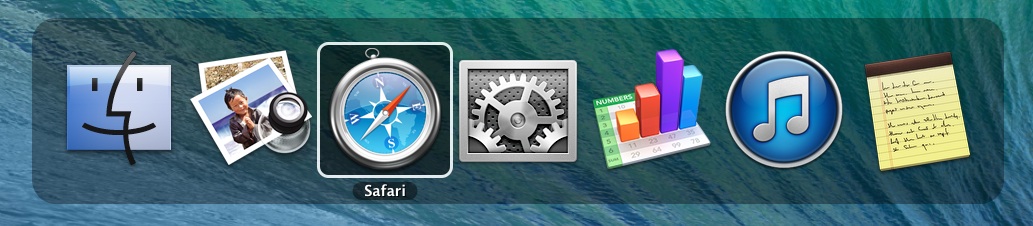
key combination to switch between different "application" windows. If your current focus is on Safari and you want to move to another application like, Numbers, you would use "Command + Tab" to switch between them. While it does that, you also get to see a nice list of applications that you can possibly switch between. Something like this image below.


Then, one day, I had opened 2 windows of Safari and when I wanted to switch between those 2 windows, I found that "Command + Tab" key combination does not help me for this. It only helps to switch between windows of different applications. To move between windows of the same application, you had to use another set of keys :

` [ Command + Back-tick ]

The back-tick is on the key which has a ~ on it. Like the one on this image below :